Oct17 lesson
Maintaining Windows
Verifying Critical Windows Settings
- Windows Updates
- Antivrus Software
- Network Secuirty
- Private VS Public
- Firewall enabled
- Proper level of Backups
- User Data VS Windows Volume VS System files
- Uninstall unnecessary software and features
- Regularly clean HD
- At least 15% free space
- scheduled defrag on non-SSD
Patches / Drivers
- x86 VS x64 VS x86_64
- 64 bit updates/drivers on 64bit OS
Backups
Disaster Recovery Planning
- Decide the type of backup
- file-level-backup
- granular control over user data
- Not great for system or application content
- image-level-backup
- Restores everything
- Doesn’t allow partial/selective restore
- critical-applications
- cloud solutions for backing up these critical applications
- file-level-backup
- Decide Backup Destination
- Cloud
- Easiest and most reliable
- Also most costly
- Local
- Easy to access at your location
- Danger of data loss in catastrophic event unless also shipped off-site.
- Cloud
- Decide Backup Software
- Consider what it backs up and how full/incremental
- Is it on separate bootable media for easy restore in case of HD crash
- Is it schedulable
- Does it allow for off-site backups
- Decide Backup Strategy
- What is acceptable data loss, 4-6 hours?
- Are partial restores necessary
- Are speed, network, and/or cost factors?
- Is documentation necessary for audits?
- Is off-site necessary?
- Decide how to ensure business continuity
- UPS, generator, etc.
- Regularily test recovery process/media
- Regularily rotate and replace backup media if local.
- Where are backups stored and how is integrity guranteed.
Backup User Data
- File History
- File-Level-Backup: Documents, Music, Pictures, Videos and Desktop folders to External HD, network share, and OneDrive
- Offered in 11, 10, and 8
- Access via Control Panel Items >> File History
- Restore via Control Panel Items >> File History >> Restore personal files or right clicking a file you want to restore.
- Backup and Restore
- Image-Level-Backup: Initial full backup of select folders and volume, then incremental changes backup up to External HD or network share
- Offered in 11, 10, and 7
- Access via Control Panel Items >> Backup and Restore
- Restore via this
- Can be used to recover a failed HD
- Should Backup:
- AppData
- Favorites
- or all User Profiles C:\Users
- recimg
- Image-Level-Backup
- Offered in 8
- System Protection
- Creates snapshots, called restore points, of changed system files
- Access via Control Panel >> System >> System Protection or rstrui.exe
- Restore via Control Panel >> System >> System Protection or rstrui.exe
- This can’t restore from a HD failure
Files, Folder, and Sorage Devices
Partitions and File Systems
-
MBR Partitions
- Required for 32bit OS or when using legacy BIOS
- Max of 4 partitions per drive
- 3 Primary partitions
- 4th extended partition of one or mor logical drives
- Boots off single active partition, which BIOS/UEFI searches for OS on

-
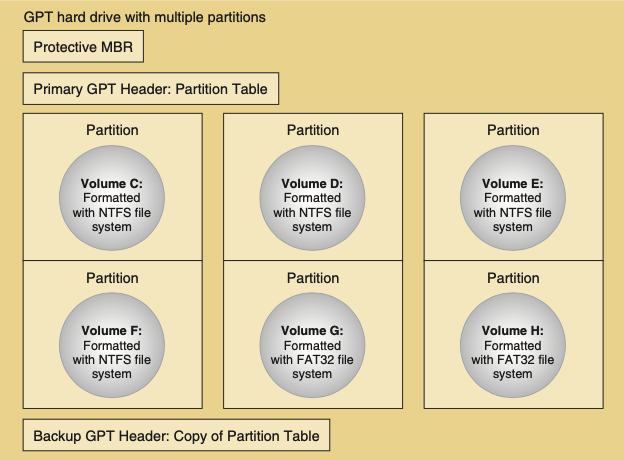
GPT Partitions
- Requires 64bit OS and UEFI firmware
- Supports 128 partitions
- Required for drives over 2.2TB and to use Secure Boot
- 1 sector is Protective MBR: Legacy info
- GPT Header tracks all partitions and immediately follows Protective MBR
- Partition Table in header, but also backed up at end of disk
- Boots from ESP which holds a boot loader which knows how to find and start the OS
-
Windows FS
- Overall structure an OS uses to name, store, and organize files and folders on a HD
- High-Level-Formatting
- Asigns Drive Letter
- Creates Root Directory
- Create FS on a volume
- NTFS
- Replaced Fat32
- more reliable, efficient, and secure (admin pass required)
- Supports encryption, disk quotas, and compression
- ReFS
- Improves upon NTFS with better performance and fault tolerance (protects sectors upon HD failure)
- Better compatibility with virtualization and RAID
- NFS, exFAT, FAT32, CDFS and UDF
Disk Mgmt
- We’ve coverd this and will cover it again in the lab, so I’m not going to chat about this except to mention Dynamic Disks
Dynamic Disks
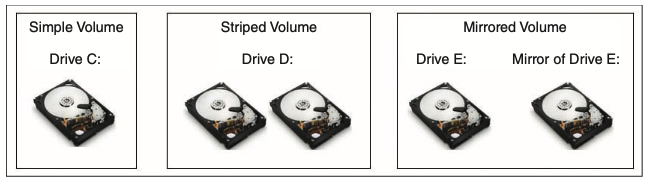
- Several disks work together to present a single dynamic volume (Linux calls these Volume Groups and Logical Volumes).
- Extended volume across dynamic disks is called spanning
- Can improve performance and aid fault tolerance (i.e. to provide software RAID)
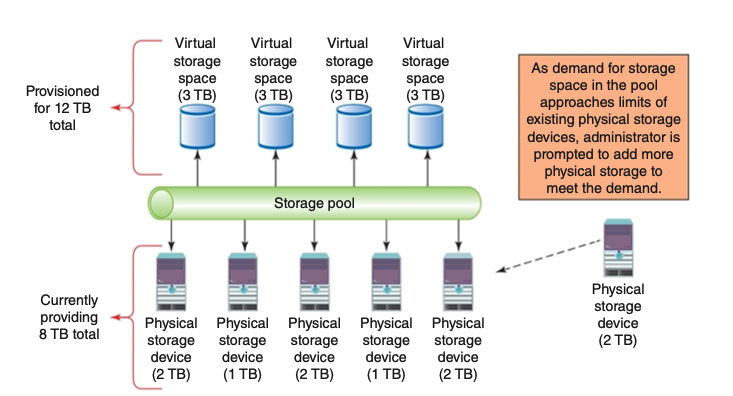
Storage Spaces
- Replacement for traditional software RAID
- Uses storage pools from a mixture of technologies SAS, STA, USB, etc.
- Options for Storage Spaces
- Simple: like RAID 0
- Two-Way Mirror: like RAID 1+0
- Three-Way Mirror: like RAID 5
- Parity: like RAID 6
- Access via Control Panel >> Storage Spaces